Precision drafting
Coordinate input, the constraint pipeline, object snaps, ortho and polar tracking, and how selection works. This is the page that makes Draft feel like the tool you already know.
Everything on this page exists to answer one question precisely: when you click, what point does the command actually receive?
Point input#
Any prompt asking for a point accepts all of these interchangeably. You never have to decide in advance whether you are going to pick or type.
| Form | Example | Meaning |
|---|---|---|
| Pick | click | The cursor position, after the constraint pipeline below |
| Absolute | 10,20 | X=10, Y=20 from the world origin |
| Relative | @5,5 | +5, +5 from the previous point |
| Polar | @10<45 | 10 units from the previous point, at 45° |
| Direct distance | 24 | 24 units from the previous point along the currently locked vector |
Direct distance entry requires something to be locking the direction — Ortho or Polar, or the cursor direction defining the vector.
Distances accept the full unit syntax: 1'2-3/4", 1'2.75", 14.5. Three- dimensional forms (10,20,30, @5,5,2, cylindrical and spherical) are covered in Three dimensions, along with the rule that an omitted Z means the current elevation rather than zero.
The constraint pipeline#
A raw cursor position becomes a committed point by passing through, in order:
Raw cursor → Grid snap → Ortho / Polar → Object snapObject snap has final say. If Ortho is on but the cursor is within the aperture of a live snap point, the snap wins and the orthogonal constraint is broken for that pick. This precedence is not configurable, because a drafter aiming at an endpoint means the endpoint.
Angles#
0° is East (3 o'clock), and positive is counter-clockwise. Both are configurable. Display format follows the drawing's unit settings — decimal degrees, degrees/minutes/seconds, radians or grads.
Ortho and Polar#
The two are mutually exclusive: enabling one disables the other.
Ortho (F8)#
Constrains the cursor to horizontal or vertical relative to the base point. The dominant axis decides which: if |dX| > |dY| the point locks horizontally, otherwise vertically.
Under a rotated UCS, "horizontal" and "vertical" mean the UCS axes rather than the world axes. In three dimensions Ortho locks to the UCS X, Y or Z axis, judged by the axes' screen projections — the axis you are visibly dragging along is the one that wins, and an axis pointing straight at the camera is not offered.
Polar (F10)#
Snaps to configurable angular increments — 15°, 30°, 45°, and so on. A dotted tracking vector is drawn when the cursor comes within a threshold of a tracked angle. POLARANG configures both the increment and the tracking window; a window of half the increment or more makes every direction track, which is a legitimate setting rather than an error.
Shift override#
Holding Shift inverts the current state for as long as it is held: it engages Ortho if Ortho is off, and suspends it if it is on.
Object snap (OSNAP)#
Object snaps are what make a drawing dimensionally correct rather than approximately correct.
Aperture. A screen-space radius around the cursor. Only geometry inside it is considered.
Snaps fire only while a command is asking for a point. When the application is idle a click selects, so a snap marker there would advertise a precision pick that cannot happen.
Feedback. The cursor magnetizes to the exact point, a per-type marker appears (square for endpoint, triangle for midpoint, circle for centre, and so on), and a tooltip names the type. Marker colours come from the theme.
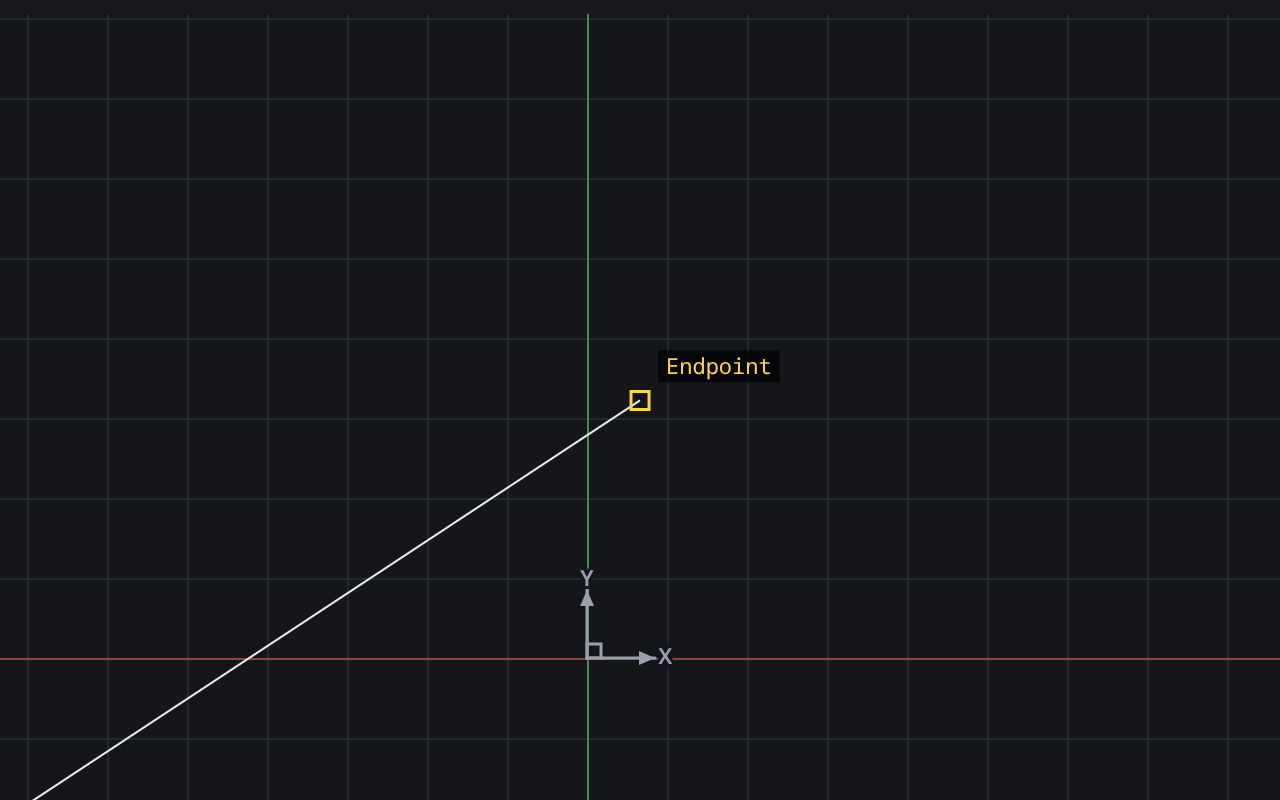
Commit. The command receives the snapped coordinate. Never the raw cursor position.
Types and priority#
Snap types are ranked in tiers. Distance decides only within a tier.
| Tier | Types |
|---|---|
| 1 (highest) | Endpoint, Intersection, Apparent Intersection |
| 2 | Midpoint, Center, Quadrant, Node, Insertion |
| 3 | Perpendicular, Tangent, Extension |
| 4 (last resort) | Nearest |
Ranking purely by distance does not work, and the reason is worth stating: Nearest returns a point on the curve, so it is almost always closer to the cursor than that curve's own endpoint. Distance-only ranking lets Nearest swallow every other type and makes precise picking impossible. Hence tiers — and Nearest defaults off, as it traditionally does.
- Perpendicular and Tangent are computed relative to the previous point in the active command, so they are only meaningful mid-command.
- Node snaps to point entities.
- Insertion snaps to a block reference's or a text's insertion point.
- Intersection covers every pair of curves, including an ellipse or a spline against anything. The line and arc family uses exact solvers; the rest is sampled to locate each root and then refined onto the true curve, so the marker never sits visibly off the geometry at high zoom.
- Apparent Intersection returns where two entities cross in the view but not in space. It is meaningless while everything is coplanar, so it belongs to three-dimensional work and defaults off.
Extension, and how acquisition works#
Extension is the odd one out. Every other type answers "what characteristic point of this entity is under the aperture". Extension fires where the cursor is nowhere near anything — out along the invisible continuation of an edge — which is the whole of what it is for.
Draft acquires an extension when an endpoint snap actually fires on that endpoint, not after a timed dwell. There is no new gesture to learn: a drafter extending a wall passes the cursor over its end, which they already do and which already shows the Endpoint marker, and then moves out along it.
Up to three acquisitions are kept, newest first; re-acquiring one moves it to the front rather than duplicating it. Two is the interesting number, because the reason to want this type at all is finding where two extensions meet. They are forgotten when the pick completes or is cancelled — an extension that outlived its command would fire on an unrelated later pick, and the ray is invisible until the cursor crosses it.
An arc extends around its own circle, not along its tangent: a drafter extending a curved wall means the wall. A polyline extends off its two free ends only — an interior vertex has geometry on both sides, so "beyond" names nothing. A closed polyline and a full circle have no end, and a spline's continuation is not defined by anything the entity stores, so extrapolating one would invent curvature nobody drew.
Toggles#
There is a global on/off (F3, or the OSNAP command) plus an independent per-type toggle set, reached with OS / OSNAPS. The per-type dialog loops until Escape, because a drafter opening it is usually turning two or three off, and it tells you when the master toggle is off — turning Endpoint on while F3 is off is legitimate by design and changes nothing visible.
The grid#
Two independent features share the name.
Visual grid (F7) is infinite: only the lines crossing the current view are drawn. Minor and major lines are visually distinct, with a configurable major frequency. The X and Y axes are distinct from both. The grid is adaptive — as you zoom out, minor lines fade or drop and the interval steps up, so the grid never becomes a solid field.
Grid snap (F9) is the separate constraint that rounds a picked point to the lattice.
LIMITS confines the lattice to a rectangle rather than drawing it to the view edge. Two details are worth knowing:
- The lattice is confined; the axes are not. They answer different questions — the lattice measures, so confining it to the site is the point, while the axes say where the current frame's origin is and which way it faces.
- The rectangle lives on the drawing and is saved, where every other grid field is a global preference. Spacing, major frequency and snap interval mean the same thing in every file; a limits rectangle is two points in this drawing's world coordinates, and held globally it would follow you into the next drawing and confine its grid to another building's boundary.
ON and OFF keep the rectangle, so switching confinement off to look at the surrounding grid does not lose the boundary you typed. Corners are taken in either order and sorted per axis; a degenerate rectangle is refused rather than stored, because it clips the lattice to a line — which is not a narrower grid but an invisible one.
LIMITS does not refuse picks outside the rectangle. Traditionally it is paired with LIMCHECK; Draft asks only that the grid be confined.
Isometric drafting#
ISOPLANE (F5) cycles Left → Top → Right → Off. The isometric lattice, the snap and the cursor rotation move together, so the lattice you can see is the lattice you land on.
Selection#
Modes#
| Gesture | Mode | Selects |
|---|---|---|
| Click | Pick | The entity under the cursor |
| Drag left → right | Window | Only entities entirely inside the box |
| Drag right → left | Crossing | Entities inside or touching the box |
The direction of the drag is the mode. There is no modifier to remember, and the box is drawn differently for each so you can see which one you are in.
Modifiers#
- Shift + click removes from the selection.
- Clicking empty space clears the selection.
- Esc cancels a running command first, and clears the selection on the second press.
Exclusions#
Entities on a locked layer, a frozen layer or an off layer are not selectable. This is not a filter applied after the fact — the pick never considers them, so a crossing window dragged across a locked reference does not quietly grab it.
Typed selection#
At any "Select objects" prompt, the classic keywords work: All, Last, Previous, Window, Crossing, Fence, WPolygon, CPolygon, Remove and Add.
Groups#
GROUP gives a set of entities a name and makes them select as one. Groups can be toggled on and off so you can edit a member without dissolving the group, and membership travels with the drawing.
Grips#
Selecting an entity with no command running shows its grips — the small squares at its characteristic points. Dragging a grip edits the entity directly: an endpoint grip stretches, a midpoint grip moves, a circle's quadrant grip changes its radius, a polyline vertex grip moves that vertex.
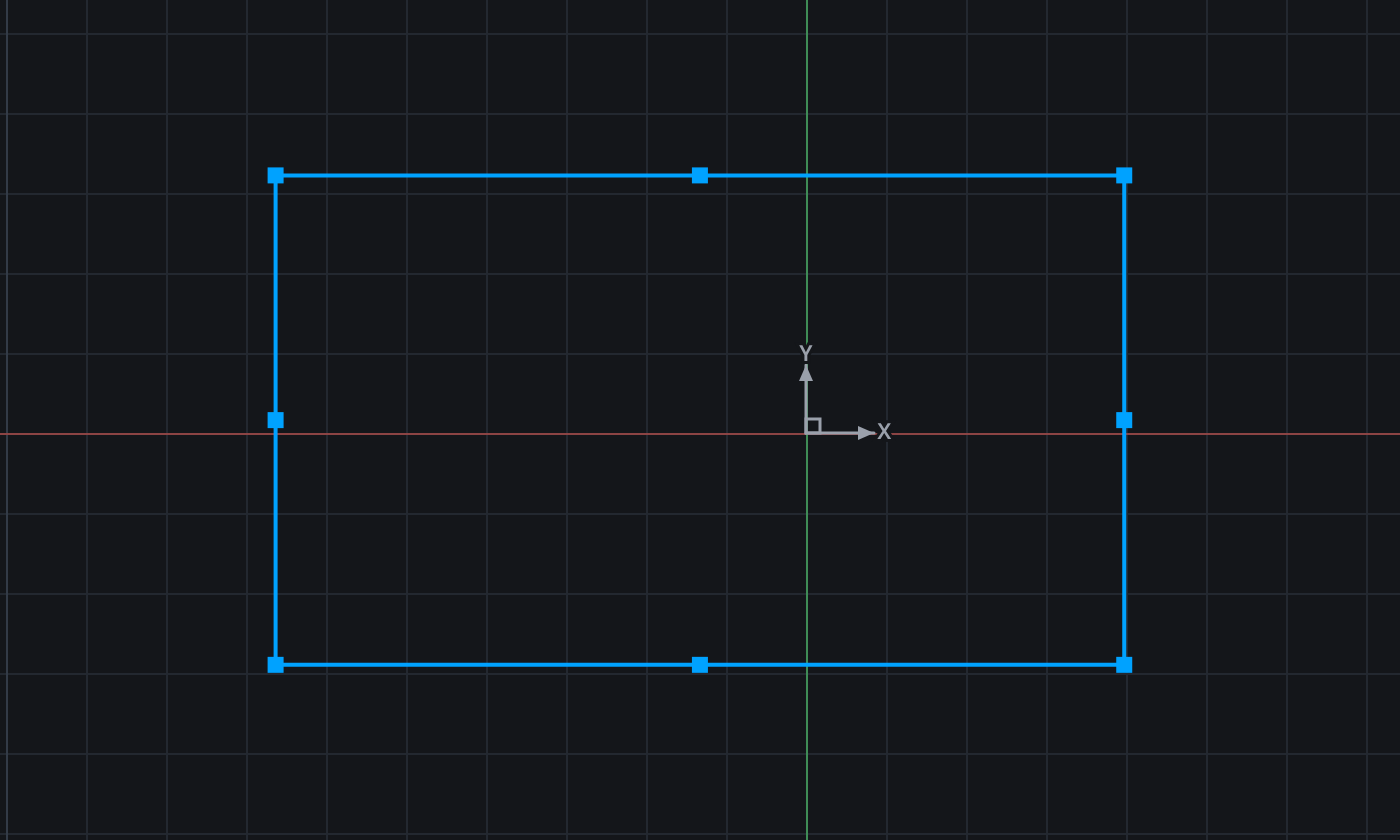
Grips remain the 2D direct-manipulation mechanism. The 3D pane gets a gizmo instead, because a grip drag cannot express an axis constraint in a projected view without a UCS dance first — see Three dimensions.