Annotation
Units, text, dimension styles and the full dimension family, leaders, tables, and how annotative scaling keeps a label the same size on paper at every viewport scale.
Units#
Units are a display and input concern — the drawing itself is unitless and 1:1.
| Type | 14.5 renders as |
|---|---|
| Decimal | 14.5000 |
| Architectural | 1'-2 1/2" |
| Engineering | 1'-2.50" |
| Fractional | 14 1/2 |
| Scientific | 1.45E+01 |
Input accepts the same forms it displays, and tolerates missing spaces around the foot mark: 1'2-3/4", 1'2.75" and 14.5 all parse.
Angles have their own format and precision setting: decimal degrees, degrees/minutes/seconds, radians or grads.
UNITS (UN) sets the drawing's unit format and precision, and it travels with the file — a drawing authored in feet and inches has to reopen reading feet and inches. Insertion units are carried too, so a millimetre block inserted into an inch drawing is scaled on insert rather than arriving a thousand times too big.
Text#
One text command, not the traditional TEXT/MTEXT split. A text entity has an insertion point, a style, a height, a rotation, an alignment, and an optional wrap width. Single-line text is simply text with no wrap width — there is no second entity type and no conversion between them.
Text also carries:
- A background mask — an opaque box behind the glyphs so a label stays readable over a hatch.
- Annotative scaling, described below.
- In-place editing — double-click and type, with the entity rendering as it will be committed.
Text styles are named templates: a font, a height, a width factor, an oblique angle, and the usual flags.
Dimension styles#
A dimension style is a named template governing:
- Lines — dimension-line and extension-line colour and weight, the "extend beyond dim line" distance, and the "offset from origin" gap.
- Symbols and arrows — arrowhead type (closed filled, architectural tick, dot, and so on), arrow size, centre-mark size.
- Text — style reference, height, colour, vertical and horizontal placement, and offset from the dimension line.
- Fit — what moves outside when there is not room for text and arrows between the extension lines.
- Primary units — format, precision, scale factor, zero suppression, prefix and suffix.
- Tolerances — none, symmetrical, deviation, limits, or basic.
DIMSTYLE (D) edits a style; DIMOVERRIDE applies a property to one dimension without disturbing its style.
Horizontal text placement is centered, at-first or at-second. When there is not room to favour an end — because the text is longer than half the span, or because it has already been pushed outside the extension lines — it degrades to centred rather than being nudged past the far extension line and labelling the wrong gap.
Associativity#
Dimensions are parametrically linked to the geometry they measure. Stretching a dimensioned line moves the extension lines and recalculates the displayed value. This applies to every dimension type.
The dimension family#
| Command | Alias | Measures |
|---|---|---|
| DIMLINEAR | DLI | The X or Y delta between two points |
| DIMALIGNED | DAL | The true distance between two points |
| DIMANGULAR | DAN | The angle between two lines, or across an arc |
| DIMRADIUS | DRA | A radius |
| DIMDIAMETER | DDI | A diameter |
| DIMORDINATE | DOR | An X or Y coordinate from a datum |
| DIMCONTINUE | DCO | The next dimension in a chain, from the last extension line |
| DIMBASELINE | DBA | The next dimension from a shared first extension line |
Linear and Aligned take three steps: first extension-line origin, second extension-line origin, then placement — with a live ghost of the whole dimension.
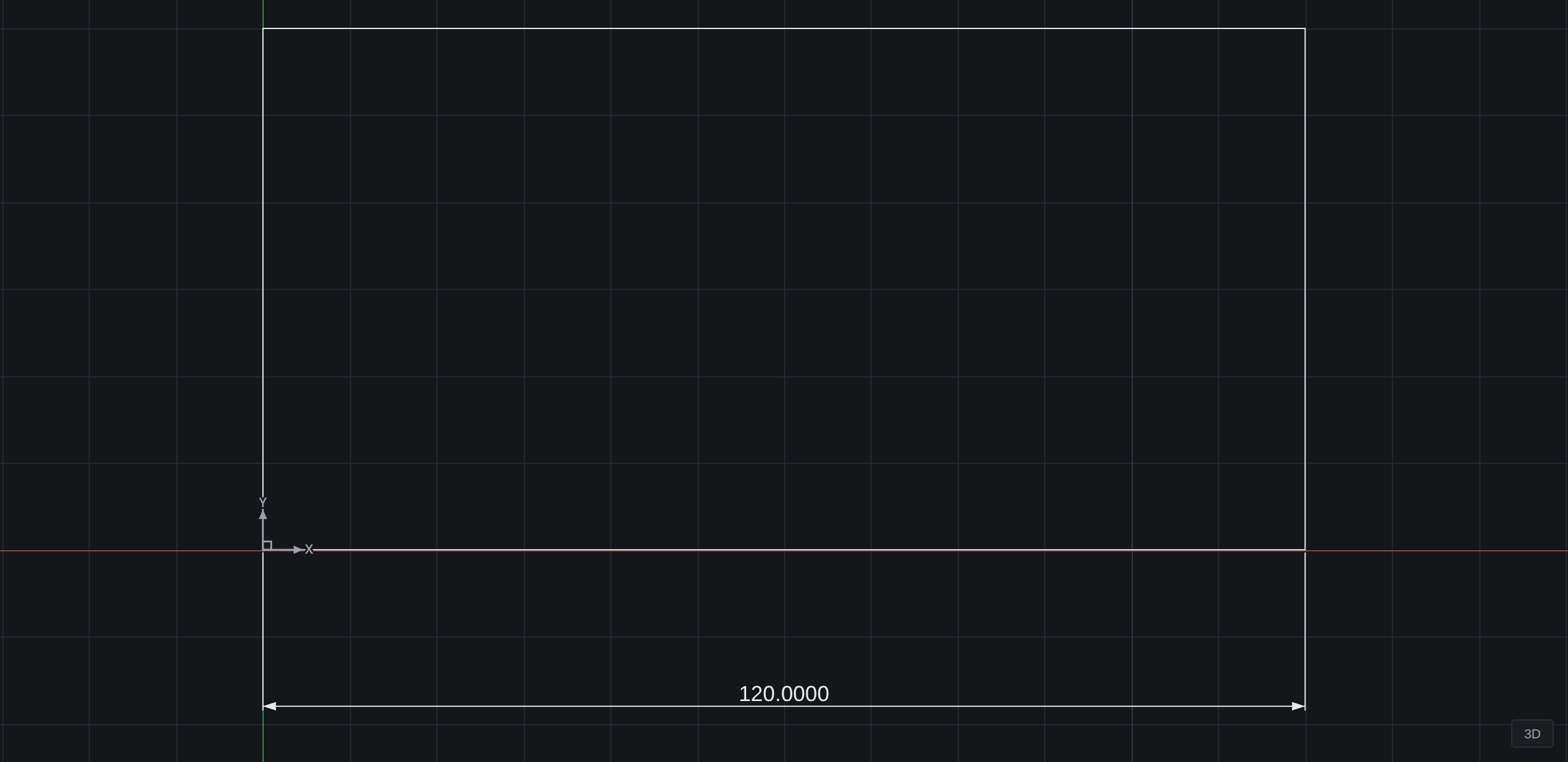
Aligned draws its dimension line parallel to the vector between the two points; Linear draws it strictly horizontal or vertical, locked by the direction of cursor movement during placement.
Two details apply throughout:
- Text stays readable. A right-to-left dimension vector flips the text 180° rather than rendering it upside down.
- Crowded dimensions flip out. When the text and arrows do not fit between the extension lines, the arrowheads flip to point inward from outside and the text moves out.
Typing a number during placement locks the dimension line exactly that far from the baseline. Text (T) enters a custom string in which <> is the token for the measured value — so <> V.I.F. renders the measurement followed by the note, and keeps updating when the geometry changes.
Ordinate dimensions measure a single coordinate from the current UCS origin, with a leader out to the label; the axis is chosen by the direction you drag.
Leaders#
LEADER / MLEADER (LE / MLD) draws an arrow, one or more leader segments, a landing, and a text or block content block at the end. Multileader styles govern arrowhead, landing distance, text style and attachment, the same way a dimension style governs a dimension.
Tables#
A table is a grid of cells holding text: a door schedule, a drawing index, a revision block.
The entity is small. It stores an insertion point at the top-left corner, a rotation, a number of rows and columns, a width per column, a height per row, and a string per cell. Everything a cell needs to be drawn — a style, a height, alignment, word wrap, background mask, annotative scaling, in-place editing, plotting, DXF — is already true of a text entity, so a table produces text for every consumer that draws, plots, picks or exports it.
Rows run down from the insertion point. Cells are named the spreadsheet way — a column letter and a row number, B3 — because every drafter has used a spreadsheet, and because the thing a table most often comes from and goes to is one.
A table declares whether it has a title row and a header row; those two tiers plus the data tier each carry their own text style, height and alignment, and any cell can override its tier.
| Command | Does |
|---|---|
TABLE (TB) | Place a table |
TABLEDIT | Edit by cell name — text, rows, columns, fit |
TABLECELL | Edit the cell under the cursor; what a double-click runs |
Annotative scaling#
Annotative scaling is what keeps a label the same size on paper regardless of the scale of the viewport it appears in. It applies to text, dimensions, hatches and block references.
- An annotative entity's stored size is its paper size, not its model size. A 3/32" annotative text is always 3/32" tall on the plot.
CANNOSCALEis the current annotation scale.- Each annotative entity carries the list of scales it participates in.
- Per-scale position: an entity may store a different position per supported scale, so a label nudged clear of a wall at 1/8" stays centred at 1/4".
ANNOALLVISIBLE, when false, hides an annotative entity entirely in a viewport whose scale it does not support.ANNOAUTOSCALE, when on, adds the new scale to selected annotative objects when you change a viewport's scale.
The multiplier is: paper height × viewport scale factor = model height. A 0.125" text at 1:48 draws 6.0 units tall.
An annotative hatch scales its pattern spacing, so hatch density is constant on paper.
Selecting an annotative entity in model space shows the active scale solid plus translucent outlines at every other supported scale, so you can see what you are about to affect. The same entity may be visible simultaneously through two viewports at different scales, and renders correctly in both.